![Bh WebLogo-Jan-25-2022-03-52-55-49-PM.svg]](https://faq.mybackhug.com/hubfs/(Current)%20BackHug%20Logos/Bh%20WebLogo-Jan-25-2022-03-52-55-49-PM.svg)
⚠️ IMPORTANT:
- The BackHug device is heavy (42kg / 92.6 lbs). Ask for help moving it.
- To avoid damage, do not cut deeper than 1cm into the cardboard box.
These instructions are a simplified version of the full manual.
Management Portal (desktop)
Important: Find '[‼️ Action Required] Activate Your BackHug Account' email to activate your account.
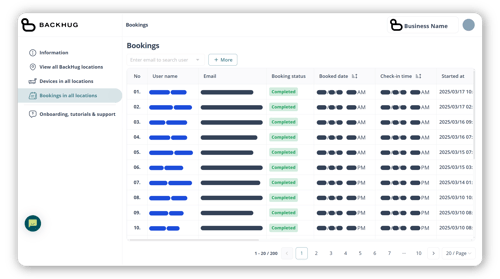
From the management portal, you can
-
Manage your location's details and BackHug devices
-
Invite administrators
-
Change operating hours
-
Set up booking fees (if applicable)
-
Invite users
- Check usage
💡 Our team will guide you in more detail during your onboarding call
The BackHug device
1. What You'll Receive
- 1x BackHug Device
- 1x Power Cable with Plug
2. Unbox and Position
-
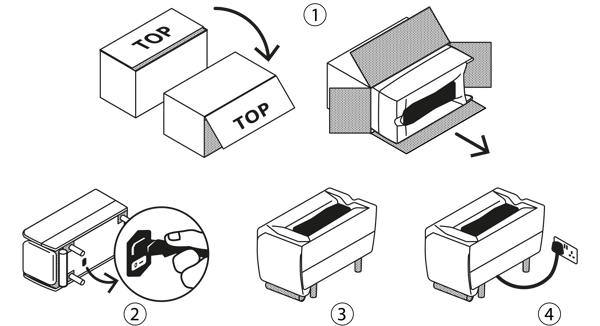
Turn the box on its side and slide the device out.
-
While the device is on its side, insert the power cord. Ensure the switch is set to "O" (Off) before plugging it into the wall.
-
Rest the device on its wooden legs.
-
Plug it in and flick the switch to "I" (On).
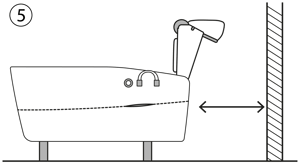
- Ensure there is 80cm (31.5") of space behind it for the leg rest to move.
📦 Fold up the box and store it safely in the event of future servicing or returns.
App Setup
1. Download the App
-
Download the BackHug app from the App Store or Google Play.
- Log in using your Management Portal credentials. Accept all Bluetooth and Location permissions so the app can find your device.
-
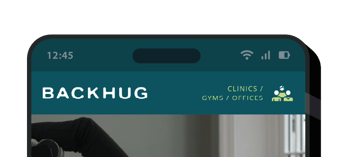
Ensure the toggle in the top-right corner of the screen is set to "CLINICS / GYMS / OFFICES".
2. Pair & Handset Mode
-
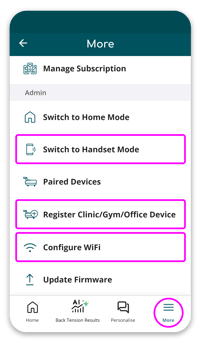
Tap "More" (bottom right) and choose "Register Clinic/Gym/Office Device" to pair the app with your BackHug device.
-
Tap 'Configure Wifi' (in the More menu) to keep your firmware updated and to enable remote diagnostics.
We highly recommend getting a tablet/iPad to turn into a dedicated handset for clients to use if they prefer not to download the app themselves.
-
While logged in with your admin credentials, tap "More", and choose "Switch to Handset Mode".
Clients can also download their own BackHug app if they prefer.
The BackHug Experience (For Users)
1. Adjust Your Settings
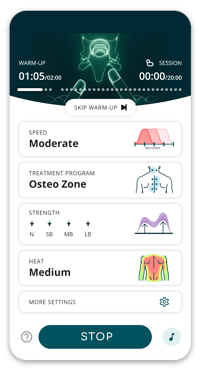
💡 Take the in-app consultation (Personalise button on the footer) to create a Personalised Treatment Program and/or adjust settings (strength, speed, heat) live during your session.
-
Back Length: Match this to your physical height before starting so the device knows exactly where to work.
-
Strength: Start gentle and increase as you relax. Firm (not painful) pressure is best.
-
Speed: Choose "Slow" for deeper pressure or "Fast" for a rhythmic feel (The default is "Moderate").
-
Heat: Turn the heat on to soften muscle tissue.
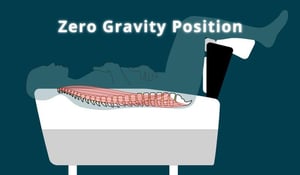
As the session begins, BackHug will automatically elevate your legs to take pressure off your lower back.
-
Use "Move Up" and "Move Down" on the screen to find your perfect comfort position.
-
💡Tip: If you are 180cm (5ft 11") or taller, lower the leg rest slightly until you feel "weightless," then hit Confirm.
2. Check Your Neck Position
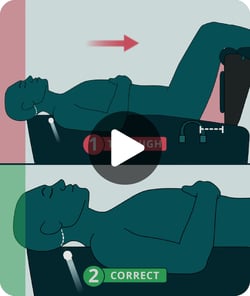
As the leg rest rises, robotic fingers will gently tap. You are perfectly aligned when you feel them right at the top of your neck. Shift your body up or down the device if needed.
3. Reading Your Results (BTT)
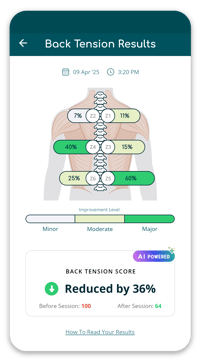
After your session, the screen displays your Back Tension Tracking (BTT) data.
You always start at a baseline of 100. The lower your final score, the better!
Example: A score of 64 means your back tension dropped by 36% during the session.
Handling Unregistered Devices:
- If you receive a message indicating that the device is not fully registered or has an incorrect MAC address, copy the MAC address displayed on your screen and note the serial ID number located on the sticker underneath your BackHug device (e.g., GB-12023-3423-XXXXXX-1D).
- Contact Support: Click the "Contact Support" button and describe the issue in the support form. Our support team will be notified and will work to solve your problem remotely as soon as possible.